Mobile Data Not Working on Android? A Step-by-Step Troubleshooting Guide
If your Android phone shows a mobile signal but websites and apps will not load, work through these checks in order. Identify whether the problem affects mobile data, Wi-Fi, or just one app. Make one change at a time and test again.
Android settings vary by manufacturer and version. Look for Network & internet, Connections, or a similar section.
Quick troubleshooting flowchart
Mobile data not working
↓
Turn Wi-Fi off; test two websites
↓
Only one app or website fails?
Yes → Check that app or website
No ↓
Check mobile data, selected SIM, signal, and allowance
↓
Restart phone; test again
↓
Turn Airplane mode on → wait 10 seconds → turn off
↓
Connection restored?
Yes → Confirm browsing and test speed
No → Compare another location and Wi-Fi; contact your carrier
1. Confirm that mobile data is the problem
Turn Wi-Fi off, turn mobile data on, and open two unrelated websites. Then test an app that needs an internet connection.
- Only one website fails: The website may be unavailable.
- Only one app fails: Check that app’s settings and service status.
- Several websites and apps fail: Continue with the mobile-data checks.
- Mobile data works, but Wi-Fi fails: Follow our Android Wi-Fi troubleshooting guide.
Google recommends comparing Wi-Fi and mobile data to help isolate connection problems. Google’s Android connection guide.
2. Check that mobile data is enabled
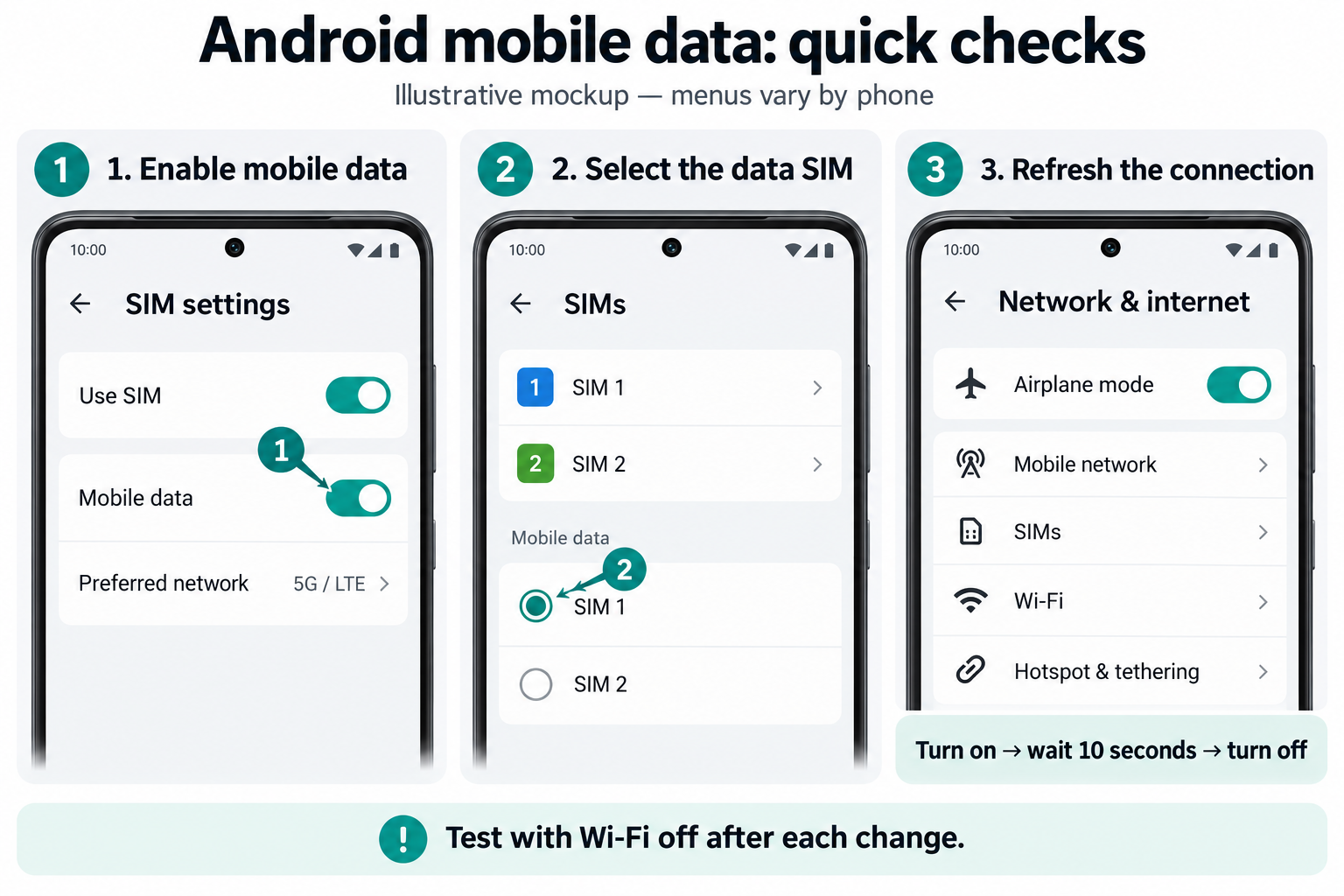
Open your phone’s connection settings and confirm that Mobile data or Cellular data is on. If already enabled, turn it off and back on. Keep Wi-Fi off while testing so the phone cannot silently use that connection instead.
Test again: Open the same two websites. If they load normally, stop here.
3. Check your signal and selected SIM
Look for a mobile-data indicator, such as 4G, LTE, or 5G, near the signal bars. Its appearance varies by phone and network.
If reception is weak, move to a different location when practical and test again. A connection that works elsewhere points toward a local coverage or network problem.
If your phone uses two SIMs, check that the intended SIM is selected for mobile data and that the line is enabled. Signal bars alone do not confirm that internet access is working.
4. Check your plan and data allowance
Using Wi-Fi if necessary, check your carrier’s app or account page for an exhausted allowance, a suspended line, a new plan that is not ready, or a reported outage. Review any data limit you previously configured on the phone.
If travelling, ask your carrier whether your plan includes data at your destination before enabling roaming, which may incur charges.
5. Restart your phone
Restart the phone, wait for it to reconnect to the mobile network, and repeat your website tests with Wi-Fi off. A restart is an early step in Google’s connection guidance.
6. Toggle Airplane mode
- Turn Airplane mode on.
- Wait 10 seconds.
- Turn Airplane mode off.
- Allow the phone to reconnect, then test again.
This briefly interrupts mobile calls and data. Google includes this procedure in its mobile-data troubleshooting steps.
7. Separate an app problem from a connection problem
If browsing works but one app remains offline, focus on that app. Close and reopen it, check for updates, and review whether it can use mobile data. Record any error message.
If you use a personal VPN, briefly disconnect it and repeat the test, then reconnect it. Consult IT before changing a required workplace VPN. Avoid changing multiple settings together—you need to know which change affected the result.
8. Contact your carrier with the results
If several apps and websites still fail over mobile data, provide your carrier with:
- Your phone model and when the issue started.
- Whether calls, texts, and Wi-Fi work.
- Whether mobile data works in another location.
- Any recent SIM, phone, or plan changes.
Ask the carrier to check service availability, account provisioning, and the correct settings for your device. Avoid entering APN values from unrelated websites.
9. Test performance after access returns
Once websites load again, visit FreeInternetTest.com to check performance. Keep Wi-Fi off to measure mobile data, pause downloads and backups, and compare results in the same location.
Speed tests use mobile data, so consider your remaining allowance before repeating them. A working connection with low speed needs a different investigation from a connection that cannot load anything. Keep your results so you can describe any remaining problem clearly.